Calendar and sessions
Calendar shows your classes, CogMAP sessions, progress meetings and task due dates in one weekly grid.
Watch (about 1½ minutes):
Good to know: the practice centre runs in 2027, so the pictures show the first week of January 2027. Your own calendar opens on the current week.
1. Read the week
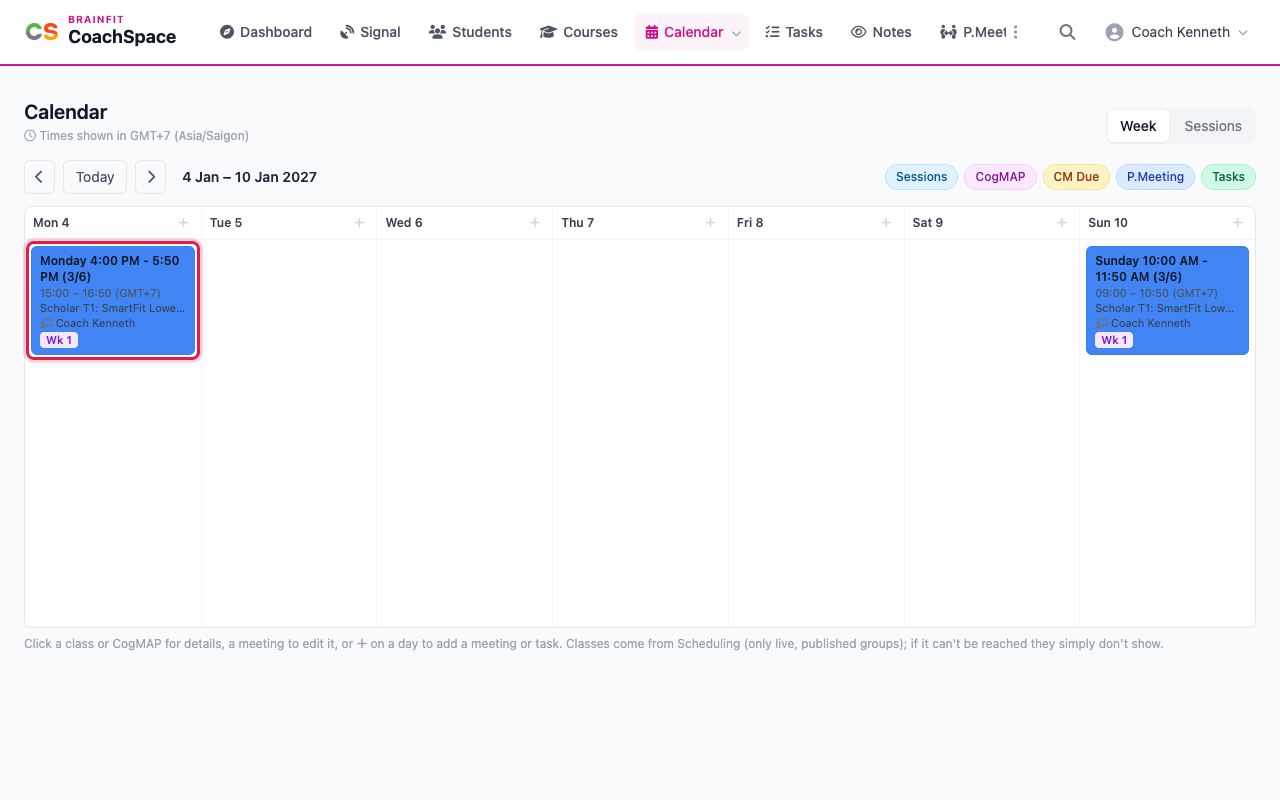
Click Calendar in the menu. The arrows move one week back or forward, and Today jumps back to the current week. Each class is a card on its day, with the class time, the class name, the trainer and the teaching week of the term (for example Wk 1). The brackets show how many students are in the class and how many it can take.
2. Open a class
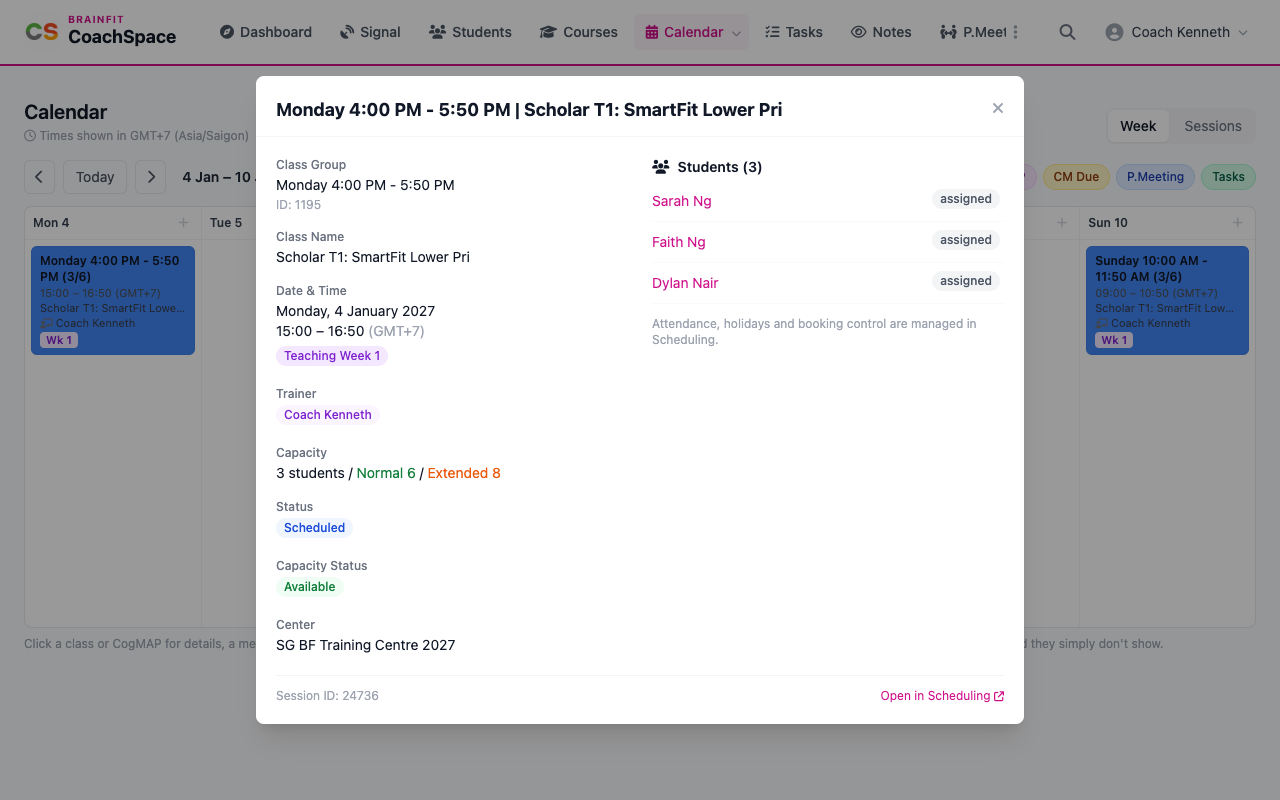
Click a class to see its date and time, the trainer, the capacity and every student booked in. Click a student's name to open their page. Open in Scheduling takes you to the full class record.
3. Turn layers on and off
The coloured buttons above the grid switch a layer on or off: Sessions, CogMAP, CM Due (CogMAP due dates), P.Meeting and Tasks. The + at the top of a day adds a progress meeting or a task on that day.
4. The list of upcoming sessions
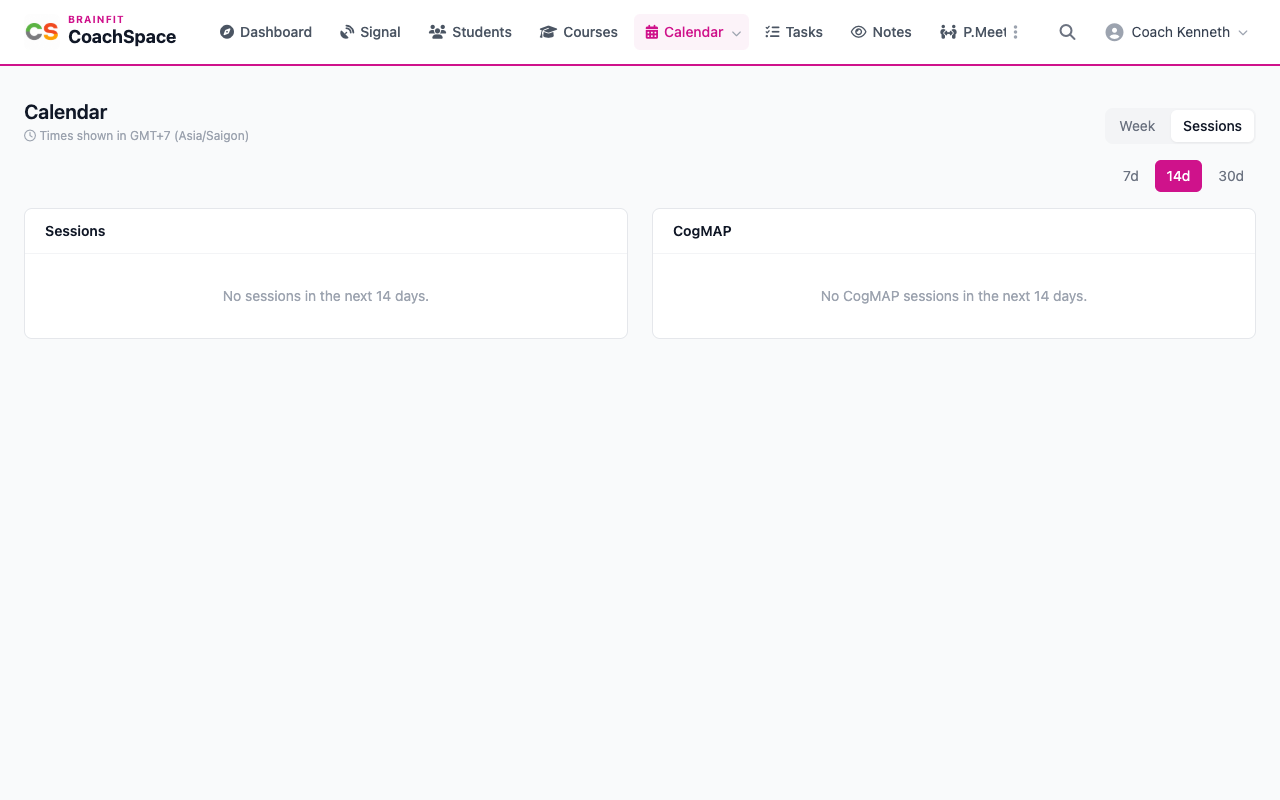
Sessions (top right, or Sessions in the Calendar menu) is a plain list of the sessions in the next 7, 14 or 30 days, with the CogMAP sessions kept apart. When nothing is booked, it says so.